
Paste, clipboard or file: where your dictated text goes
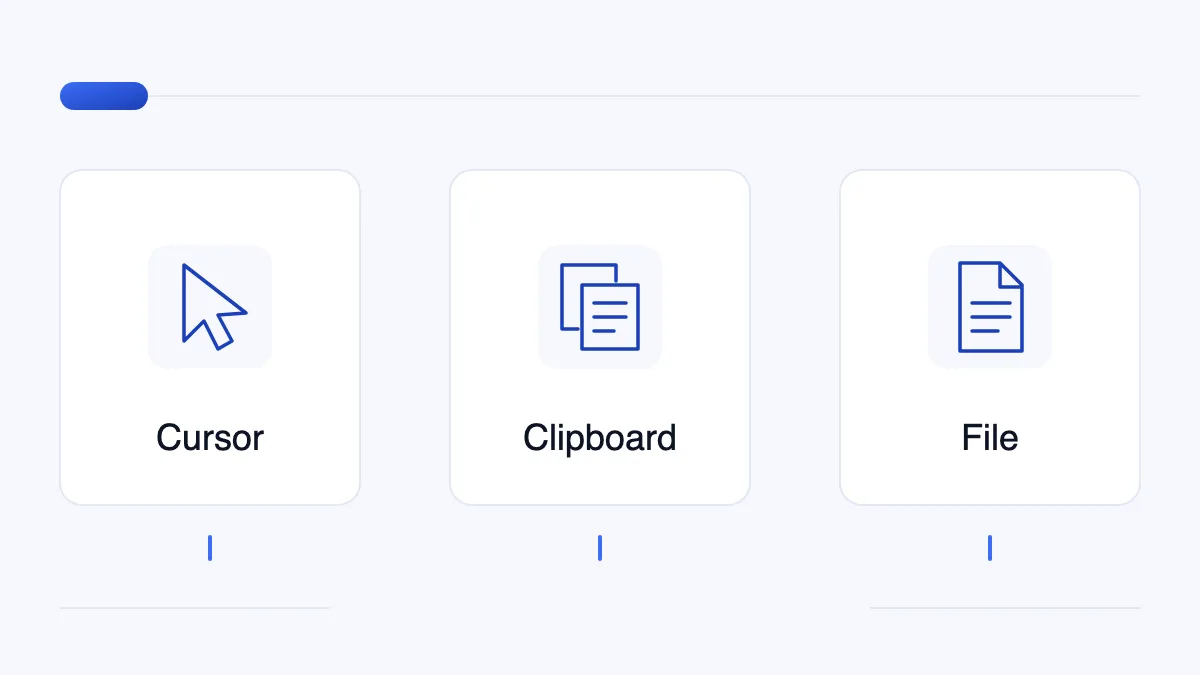
Choose the destination before you start dictating. Secretary42 can paste the transcript at your cursor, route it to the clipboard or send it to a file. Treat these as three choices for your next writing step. For your first exercise, pick one destination, dictate a harmless paragraph and inspect the result there. Then decide whether to keep using that route or try another one for the kind of draft you want to write.
Paste into the place you have chosen
Secretary42 uses a customizable global hotkey to start and stop dictation from any app. Text can land at your cursor. Before the recording, choose the place where you intend the paragraph to appear and put your cursor there. After dictating, read the text in that destination before continuing with the rest of the draft or using the passage elsewhere.
The app needs microphone access and, on macOS, Accessibility access so it can paste into other apps. Check those requirements before testing this route. Use a harmless passage in your intended destination first, and inspect the actual result. Keep the test about the path you plan to use, including your own review of the text after it arrives.
Choose the clipboard or a file for another step
The clipboard and file are also available as transcript destinations. Try one of them if you want to make a separate decision about where to use the text. Dictate a short passage, inspect it and choose what to do next. Keep the first exercise simple: one paragraph, one route and one review before moving to another writing task.
For a rough draft, consider a file destination and edit the passage before moving it elsewhere. For a passage you intend to place yourself, consider the clipboard route. Treat these as suggestions to try against your own routine. Decide after inspecting the result rather than choosing a route only because it is the first one you tested.
Review the receiving app too
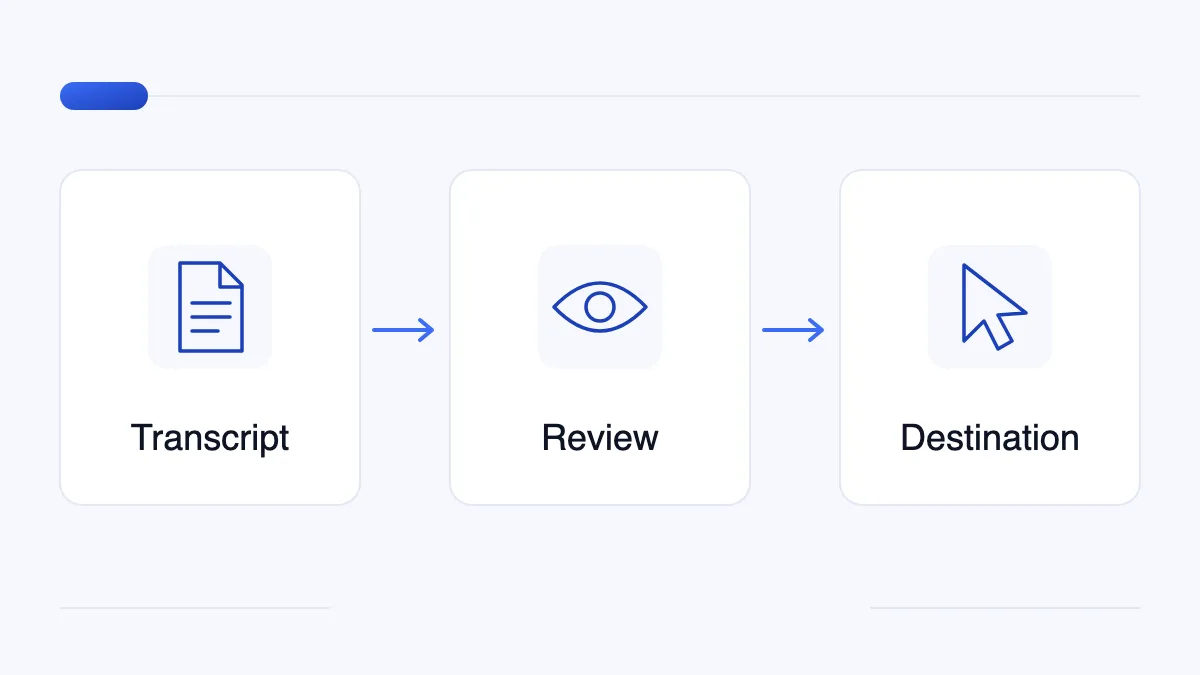
Secretary42 itself does not send your dictation anywhere. When you paste the text into a cloud app, that app sends it like any typed text. Include that step in the decision about the destination. Before using a transcript in an online document or message, review the content and the place you intend to put it.
Audio and transcript text are processed locally by the bundled whisper.cpp engine, with no cloud transcription fallback. Do not extend that promise to the app receiving your text. For professional or confidential writing, also consider that Secretary42 offers no B2B contract or data-processing agreement. Compare your full intended workflow with your requirements before choosing material for a real session.
Keep the history decision separate
Past transcriptions are stored locally in SQLite. You can view, copy or delete them. After testing a destination, review the corresponding history entry and decide whether to keep it. Use the history copy option when you want to copy a past transcription, and read the text again before choosing a new place to use it.
Offline dictation requires activation and a downloaded model; activation, downloads and updates need internet access. Secretary42 supports macOS 13 or later on Apple Silicon and Windows 10 or 11 on x64 with AVX2. Check these requirements before setting up your test, then focus the exercise on the destination and the final review you intend to use.
Try the route you actually need
Read the offline dictation guide and the Privacy Notice. Choose one destination for a harmless test paragraph, review the result there and decide what to keep in local history before trying another route.
Try Secretary42 on your Mac or Windows PC
Secretary42 transcribes your speech on your own device with local Whisper models — no cloud transcription. It runs on macOS 13 or later (Apple Silicon) and Windows 10 or 11 (x64 with AVX2).
€9.99 per month or €99.99 per year. Prices include VAT for EU customers; Paddle shows the final amount before you pay. One subscription covers macOS and Windows, on up to three of your own devices.